
Join and leave voice
Click a voice channel (🔊) in the channel list to join. The voice panel, at the bottom of the channel list, shows the connection and has the mute (your microphone), deafen (you stop hearing) and Leave voice buttons. People in each channel appear right below it, with icons when someone’s microphone or sound is off.
The signal bars in the voice panel follow your real ping. Hover over them to see the value, for example Ping: 42 ms · excellent connection.
Each person’s volume
Right-click someone in the voice room to set that person’s volume just for you, from 0% to 200% — it is saved. The same menu lets you report, copy their ID and, if you moderate the server, time out, kick or ban.
Microphone and sound
In Settings → Voice & audio (Ctrl+,) you choose input and output devices and test your microphone level. Sensitivity is automatic by default; in manual mode you set the threshold in dB and see its mark in the mic test. Voice uses high-quality Opus with noise suppression and echo cancellation.
In Settings → Sounds you set the volume of app sounds (joining and leaving voice, mute, connection drops, streams, DMs, mentions…), turn each type on or off and preview each sound. In "Do not disturb" only voice sounds play.
Push to talk
Rather talk only when you want to? In Settings → Voice & audio → Input mode, switch Voice activity to Push to talk.
- Click Set key and press the key or a side mouse button (Esc cancels).
- The shortcut works with Zync in the background, even with a full-screen game.
- Release delay (0 to 1000 ms, 200 ms by default) keeps the end of your sentence from being cut.
- In voice, the panel shows Hold F8 to talk (with your key) and, while you hold it, Sending your voice.
Privacy: the global shortcut is only on while you are in voice with push to talk, and Zync only gets "pressed" and "released" for the chosen key — nothing you type.
Share your screen
Inside a voice channel, use Share screen in the voice panel and choose a screen or window and the quality:
- 720p · 30 fps — light, for modest connections;
- 1080p · 30 fps or 1080p · 60 fps — the sweet spot for games;
- 1440p · 60 fps — maximum sharpness, needs a good upload connection.
Stream audio is stereo, without voice processing, so game sound arrives as it is.
Sharing a window? Keep it visible. Browsers such as Edge and Chrome stop drawing video when their window is covered by another, and viewers see a black area. If you need to switch between windows, share the whole screen.
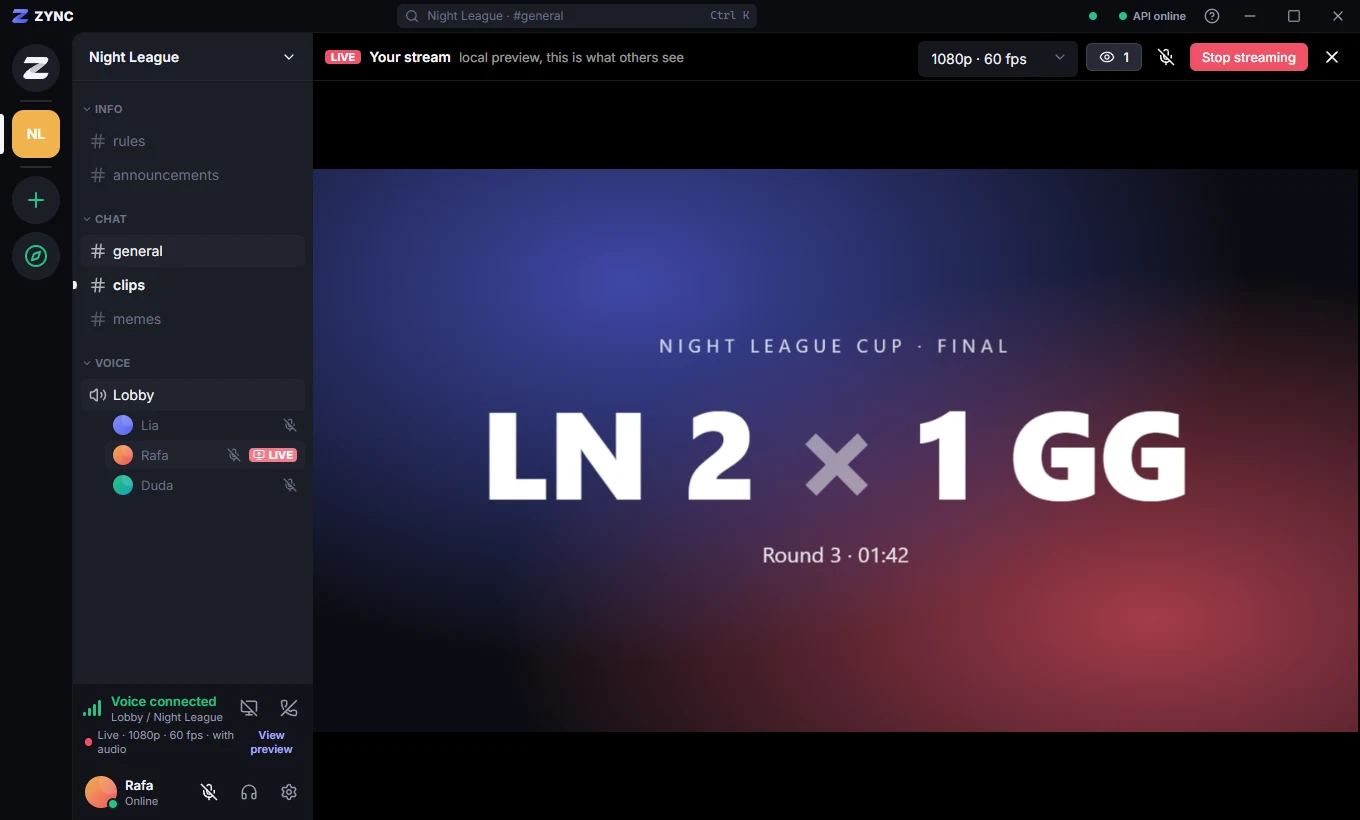
While you stream, the streamer panel lets you change quality live (without stopping), toggle your microphone, see who is watching, block someone from that stream only and Stop streaming.
Watch a stream
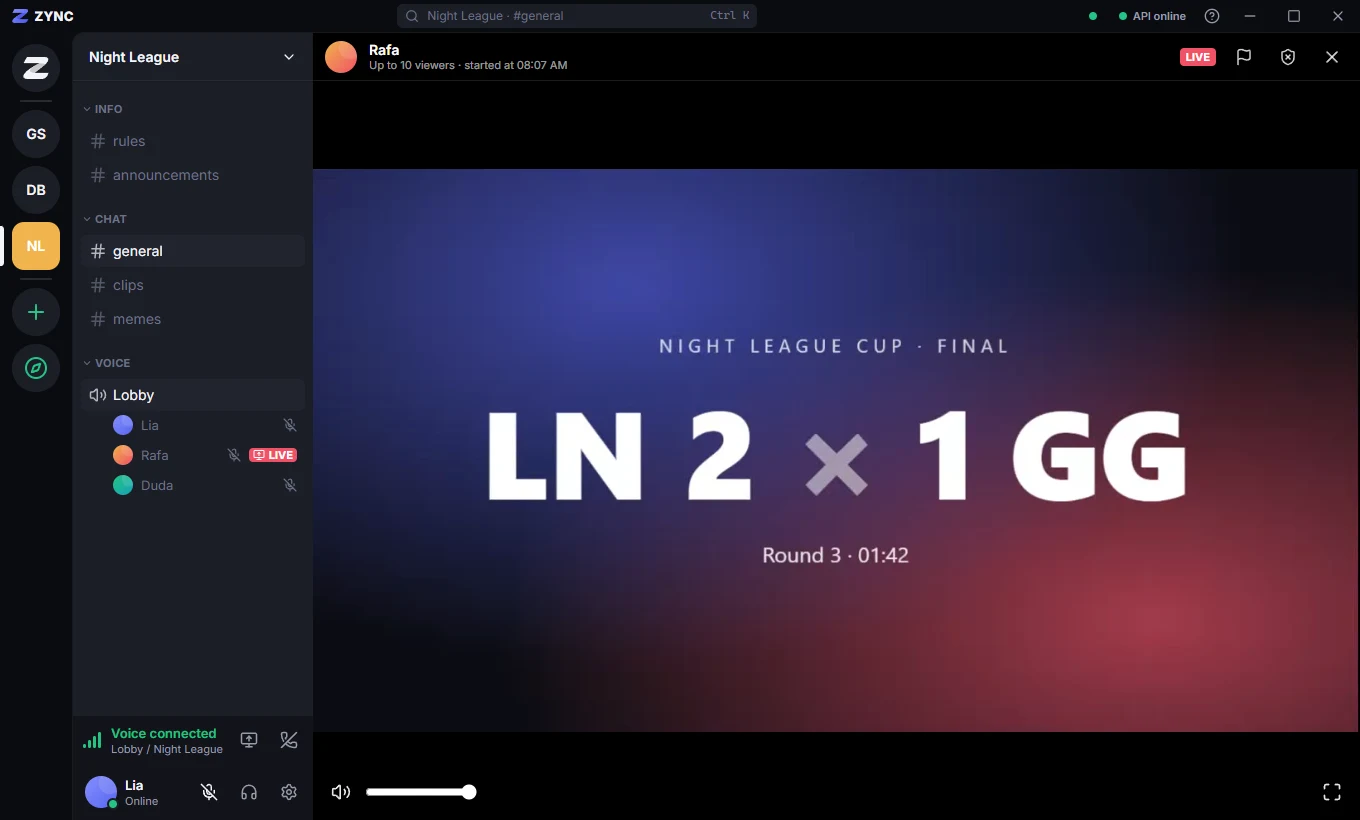
Click LIVE next to the name of the person streaming. The bar over the video has mute, stream volume and full screen — it stays available in full screen, and double-clicking the video toggles it too. The same bar lets you report the stream.
Want to see what you are streaming? Click LIVE next to your own name in the voice channel, or View preview in the voice panel. The preview comes straight from your capture: it takes no viewer slot, uses no internet and has no audio, to avoid echo.
Streams are 18+
To protect children and teenagers (Brazil’s ECA Digital law), sharing and watching screen shares is only allowed from age 18. Age comes from the date of birth given at sign-up (or in Settings → My account, for older accounts). It can only be set once and cannot be changed in the app; if you made a mistake, contact support. The date never appears on your profile.
For server admins
- In the server settings, Viewers per screen share sets how many people can watch each stream (10 by default, up to 50).
- Voice permissions control who can connect, speak and share the screen in each channel, and who can mute, deafen or move others — see Roles and permissions.
- Viewers can report the stream from the player, and moderators can end it instantly. Zync records who streamed, where, for how long and to how many people.
Not there yet
Voice calls in DMs and camera are on the roadmap. Nothing from voice or screen shares is recorded: audio and video pass through the server in real time only.