
Since Zync 0.36.0, you can have a bot in your server without writing code or keeping a server running: you pick a template, write the replies and Zync itself replies as the bot.
1. Open the builder
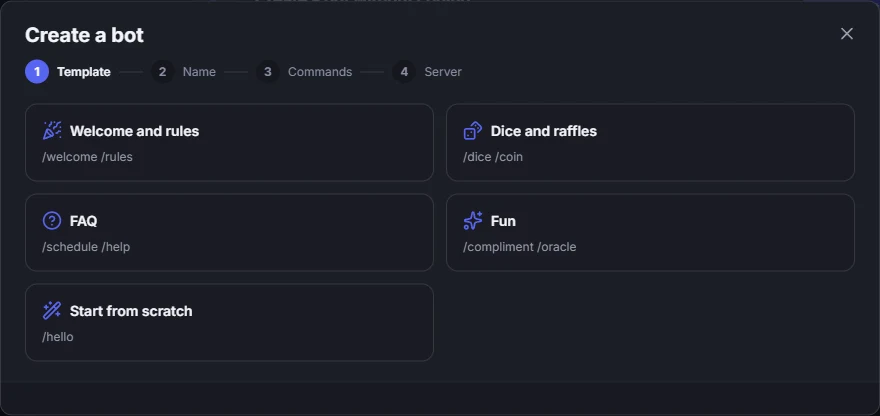
In Settings → My bots (in the Advanced group), use Create bot. The builder has four steps: Template, Name, Commands and Server.
2. Pick a template
Each template comes with sample commands you can change freely:
- Welcome and rules: welcomes people and shows the server rules;
- Dice and raffles: rolls dice and flips a coin;
- FAQ: answers schedules, help and whatever your community always asks;
- Fun: compliments, a yes-or-no oracle and more;
- Start from scratch: no commands, to build it your way.
3. Give it a name
The Bot name shows in chat with the BOT badge. In What it does, write a sentence for the bot’s profile (optional).
4. Write the commands
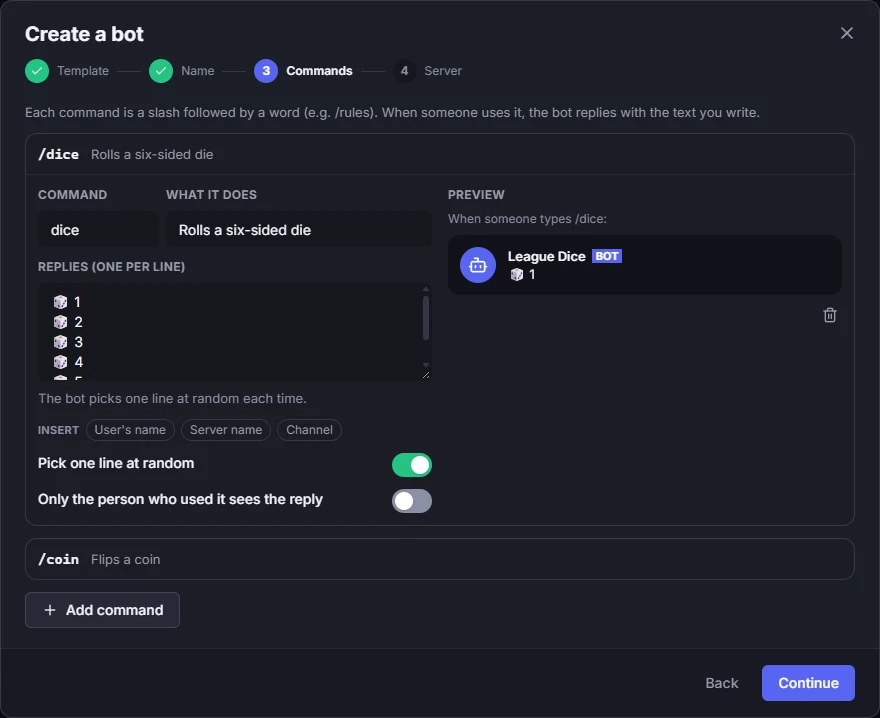
Each command is a slash followed by a word, like /rules. When someone uses it, the bot replies with the text you wrote. The Preview shows the reply as you type.
- Insert puts the User's name, the Server name or the Channel in the reply; Zync fills it in when replying.
- Pick one line at random: write one reply per line, and the bot picks one each time (great for dice, coins and oracles).
- Only the person who used it sees the reply: the reply doesn’t stay in the channel (good for help and rules).
- Use Add command to have more than one.
5. Add it to the server
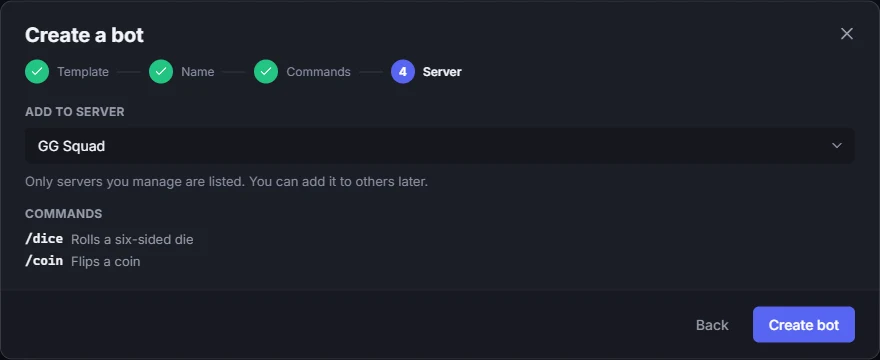
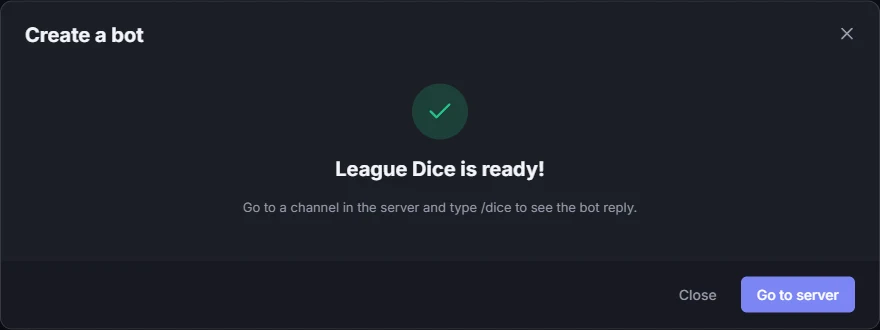
In Add to server, only servers you manage are listed; you can add it to others later. Use Create bot and you’re done: go to a channel in the server and type the command to see the bot reply.
Editing later
In My bots, Edit reopens the bot on its commands. Know how to code and want more than ready-made replies? See Developers and the example bot.