
When you stream your screen, you don’t want to show your email, an invite or a direct message by mistake. Streamer Mode hides them and keeps the app quiet.
Turn it on and off
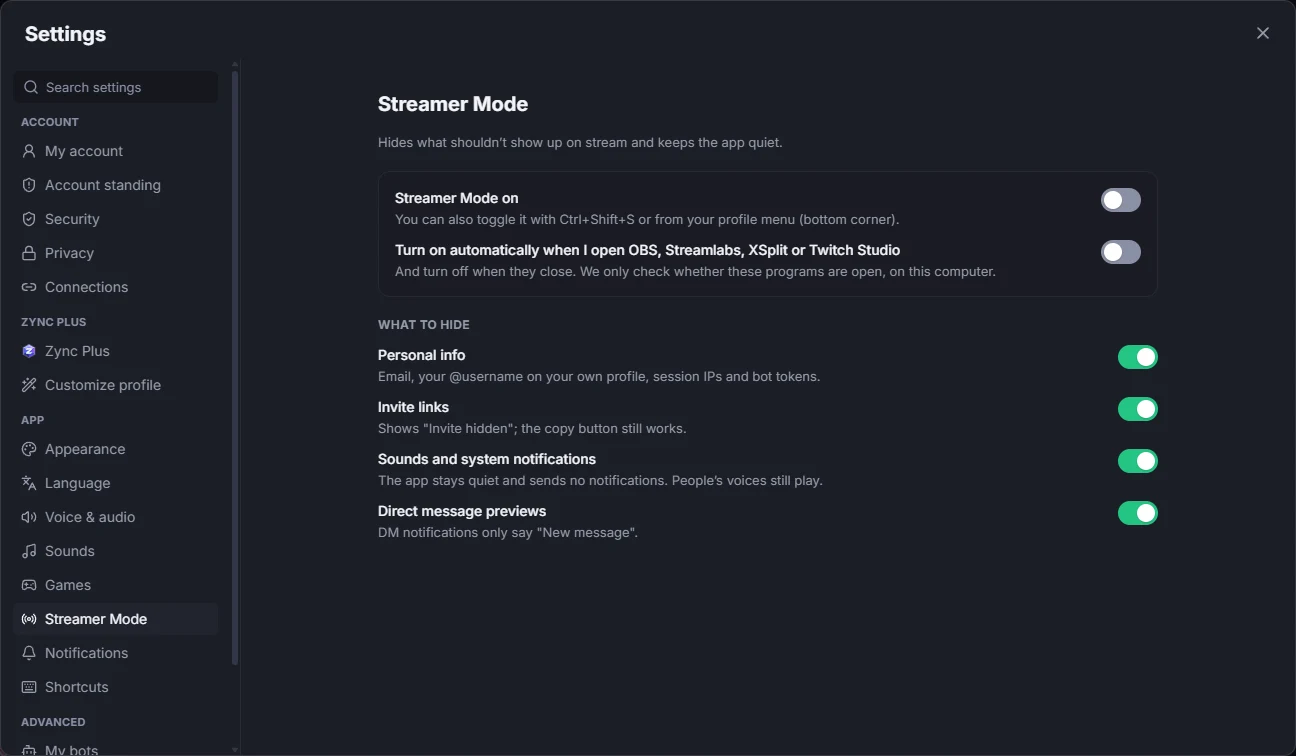
- in Settings → Streamer Mode;
- with the Ctrl+Shift+S shortcut;
- from your profile menu in the bottom-left corner. While the mode is on, it shows Streamer Mode instead of your @username.
Turn on by itself
In Zync for Windows, turn on Turn on automatically when I open OBS, Streamlabs, XSplit or Twitch Studio. The mode turns off when they close. Zync only checks whether those apps are open, on your computer.
What it hides
In Settings → Streamer Mode you choose what to hide:
- Personal info: your email, your @username on your own profile, session IPs and bot tokens;
- Invite links: you see "Invite hidden", and the copy button still works;
- Sounds and system notifications: the app goes quiet and sends no notifications. People’s voices still come through;
- Direct message previews: DM alerts show only "New message".
See something hidden
Use Show anyway. Zync asks first, because your viewers will see it too.
On your phone
Zync for Android has had Streamer Mode since 0.16.2: turn it on yourself or let it turn on when you stream from Zync or record your screen (Android 15 or newer).