Slash commands
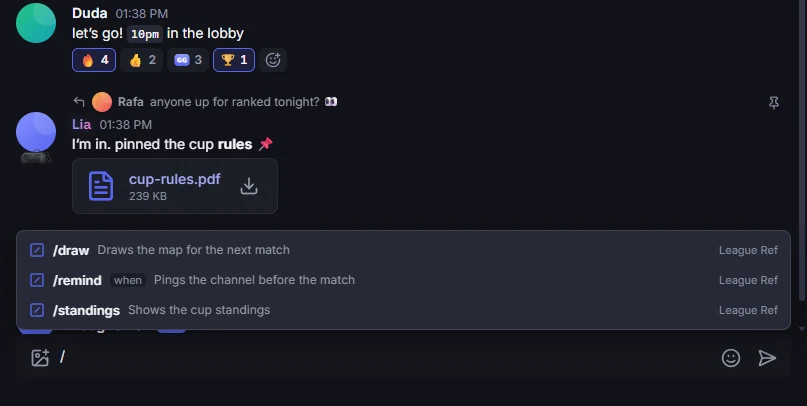
Type / in the message box to see the server bots’ commands, with each bot’s name and options. Tab completes the command and Enter runs it. Text after the name goes to the command’s option, as in /remind 10pm.
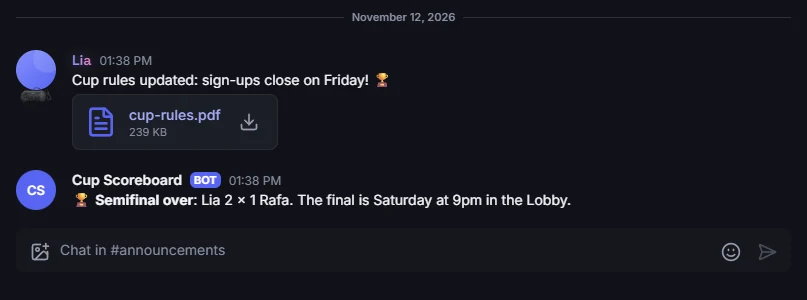
The bot’s reply shows in the channel with Someone used /command above it, for everyone to see. Some commands reply only to you: the reply shows "only you can see this" and goes away when you click Dismiss.
Create a bot
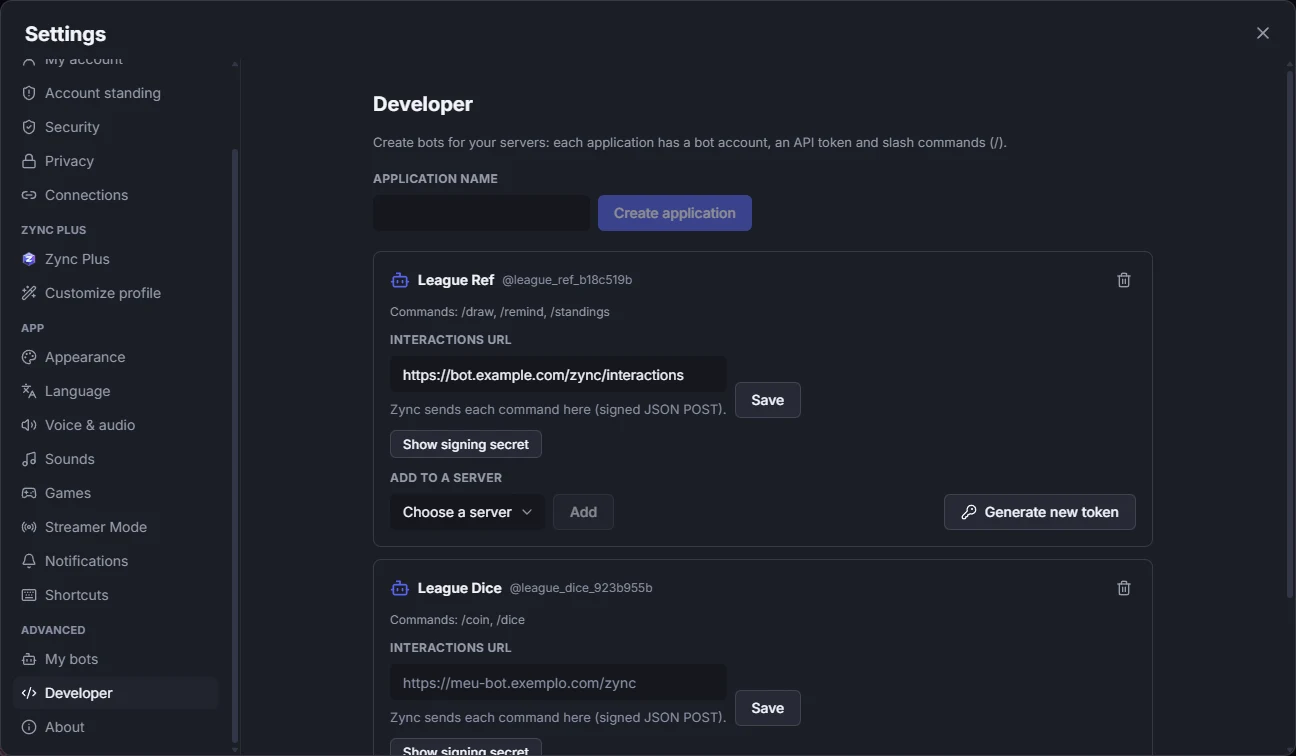
In Settings → Developer, click Create application. It gets a bot account, with the Bot badge, and an API token, shown only once (keep it like a password). Under Add to a server, put the bot in a server you manage.
To program the bot — register commands, receive interactions and reply —, see the developer guide.
Webhooks
A webhook lets another service — a deploy, an alert, a feed — post in a channel. In Edit channel → Webhooks, give it a name and click Create webhook; copy the URL, which is shown only once. The service posts a JSON {"content": "..."} to that URL, and the message shows the webhook’s name and the Bot badge.
Creating or deleting webhooks needs the Manage webhooks permission. Webhooks can also post in announcement channels. Deleting a webhook invalidates its URL right away.